
Recovery map
See which muscles are ready and which still need rest, based on what you trained.
Find it: Progress > Recovery

 Coming soon
How do I see which muscles are recovered?
See which muscles are ready and which still need rest, based on what you trained.
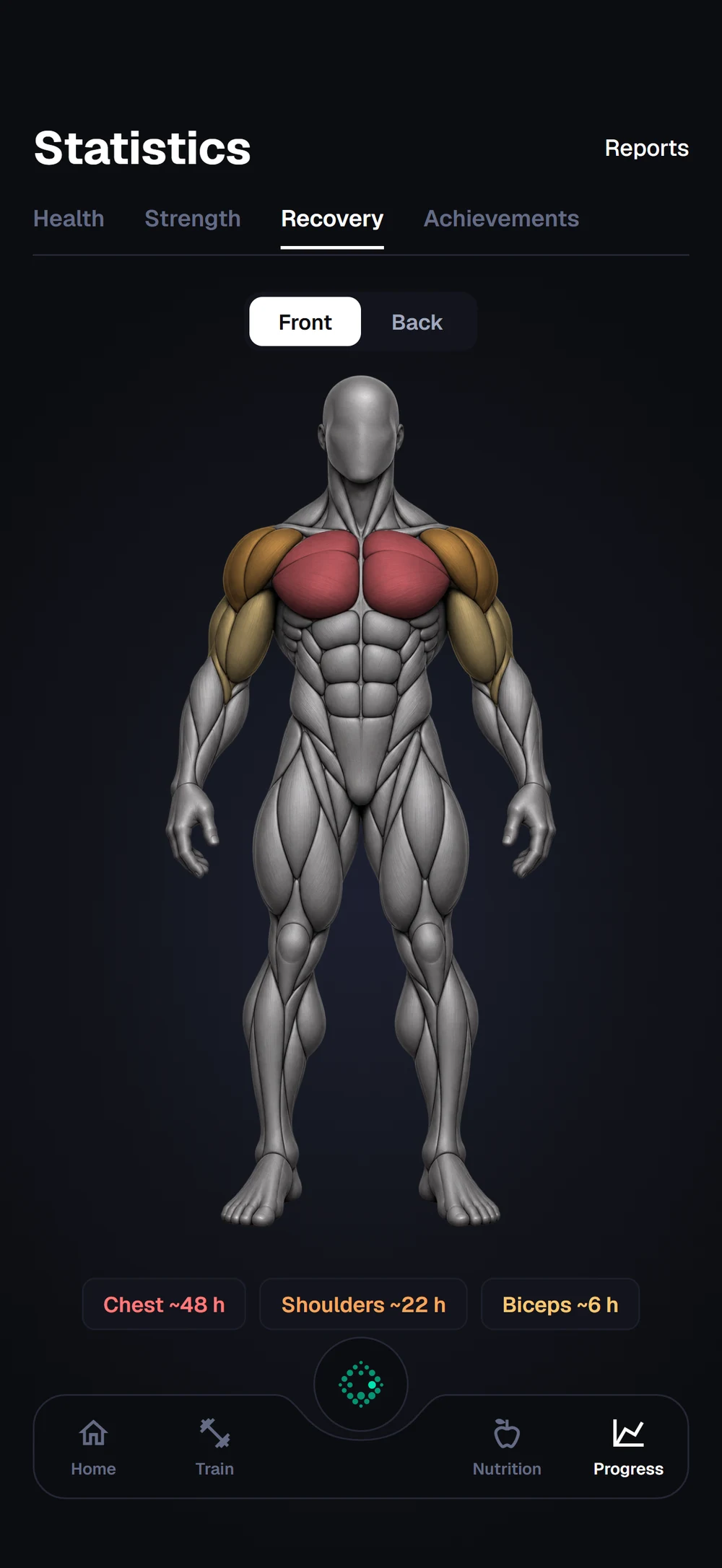
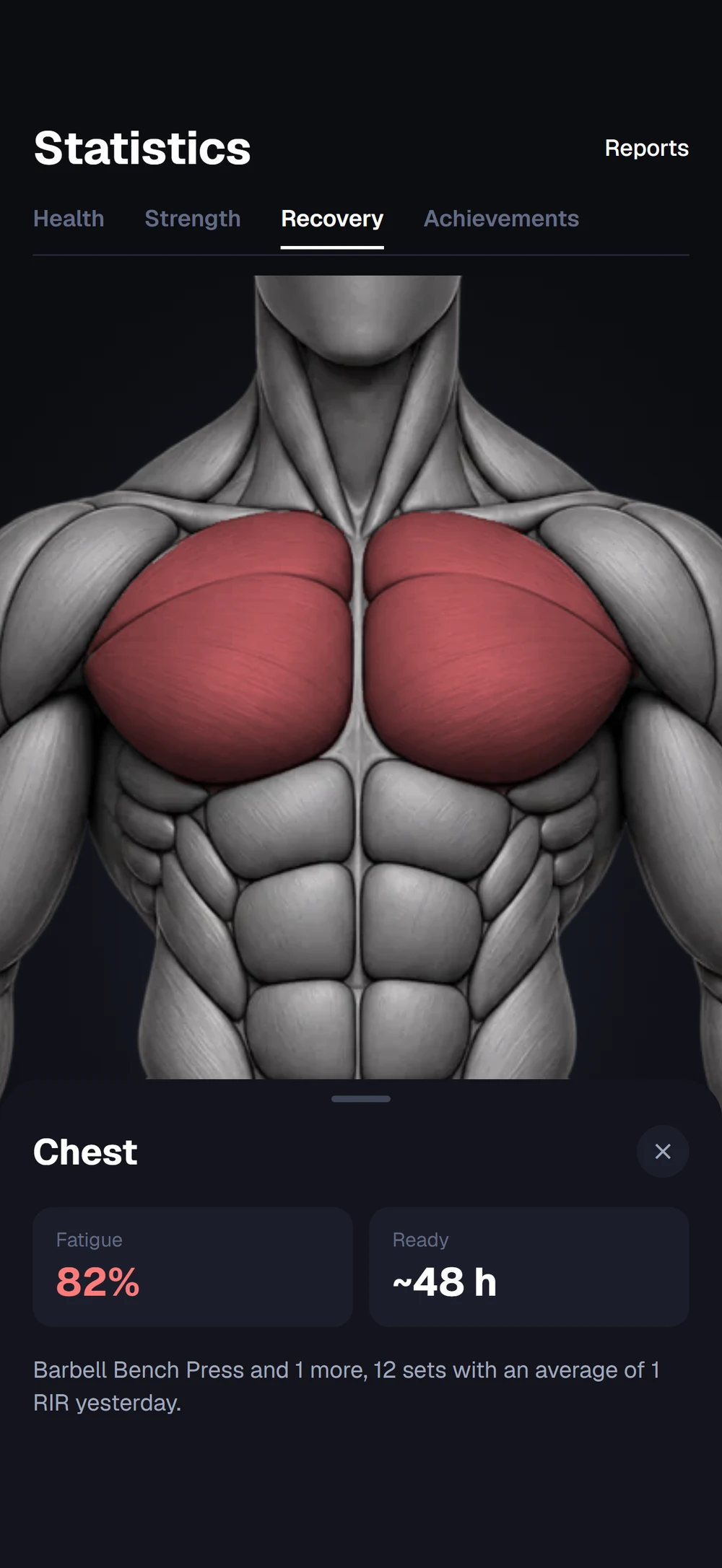
Open Progress and go to Recovery. Tired muscles are colored on the body, and the chips below say when each one is ready. Tap a muscle to zoom in. You see how fatigued it is, when it is ready and what trained it.
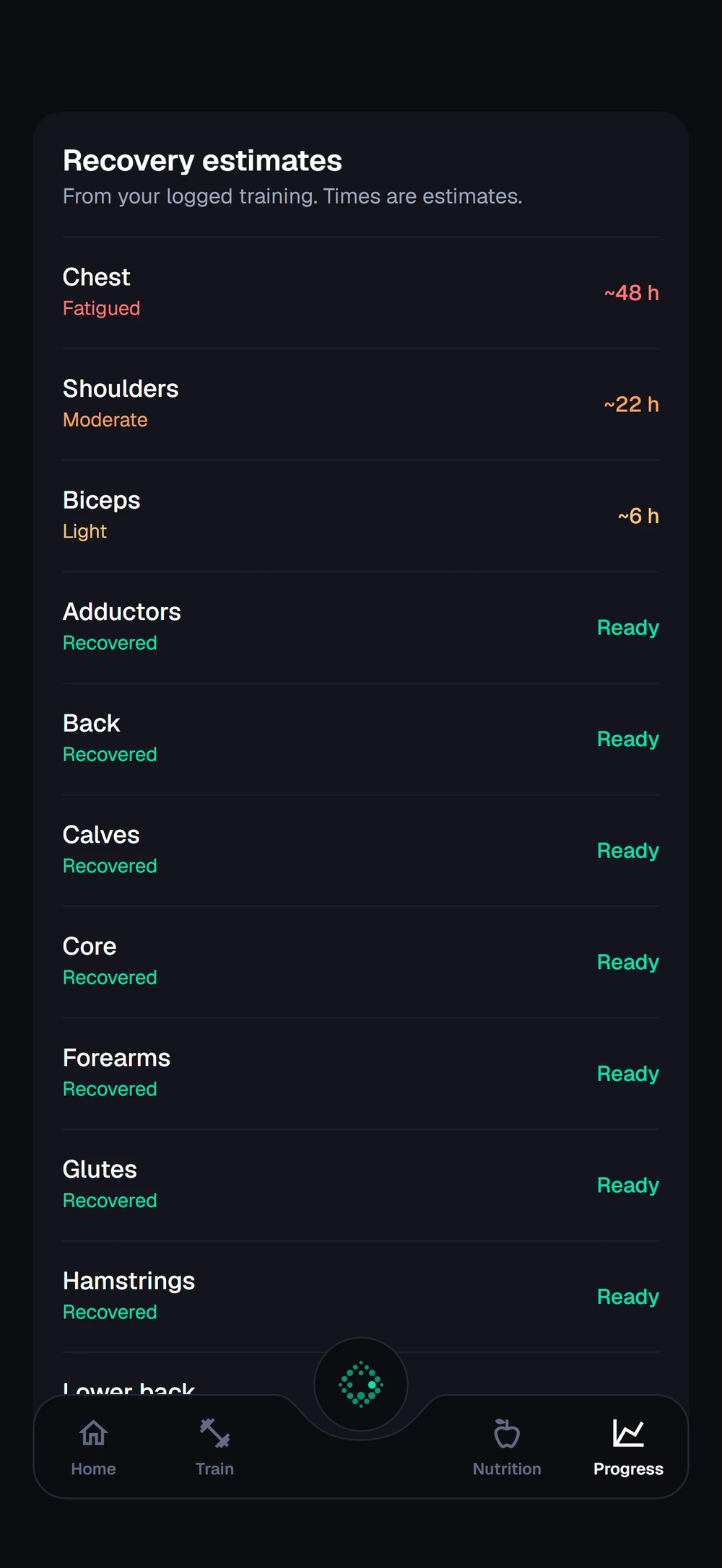
Scroll down for every muscle, most tired first, with its status and time left.
Frequently asked questions
How do I see which muscles are recovered?
See which muscles are ready and which still need rest, based on what you trained. Here is how: Open Progress and go to Recovery. Check the body. Tired muscles are colored, and you can switch between Front and Back. Tap a muscle to zoom in and see its fatigue, when it is ready and what trained it. Scroll down for the full list of muscles, most tired first.
Is recovery map free in Bite?
Recovery map is part of Bite Coach. The free app covers workout logging, programs and progress tracking.
Where do I find recovery map in the app?
Go to Progress > Recovery.