
Configure sets, reps and technique
Change sets, rep range, rest and technique for one exercise.
Find it: Program > exercise > Configure

 Coming soon
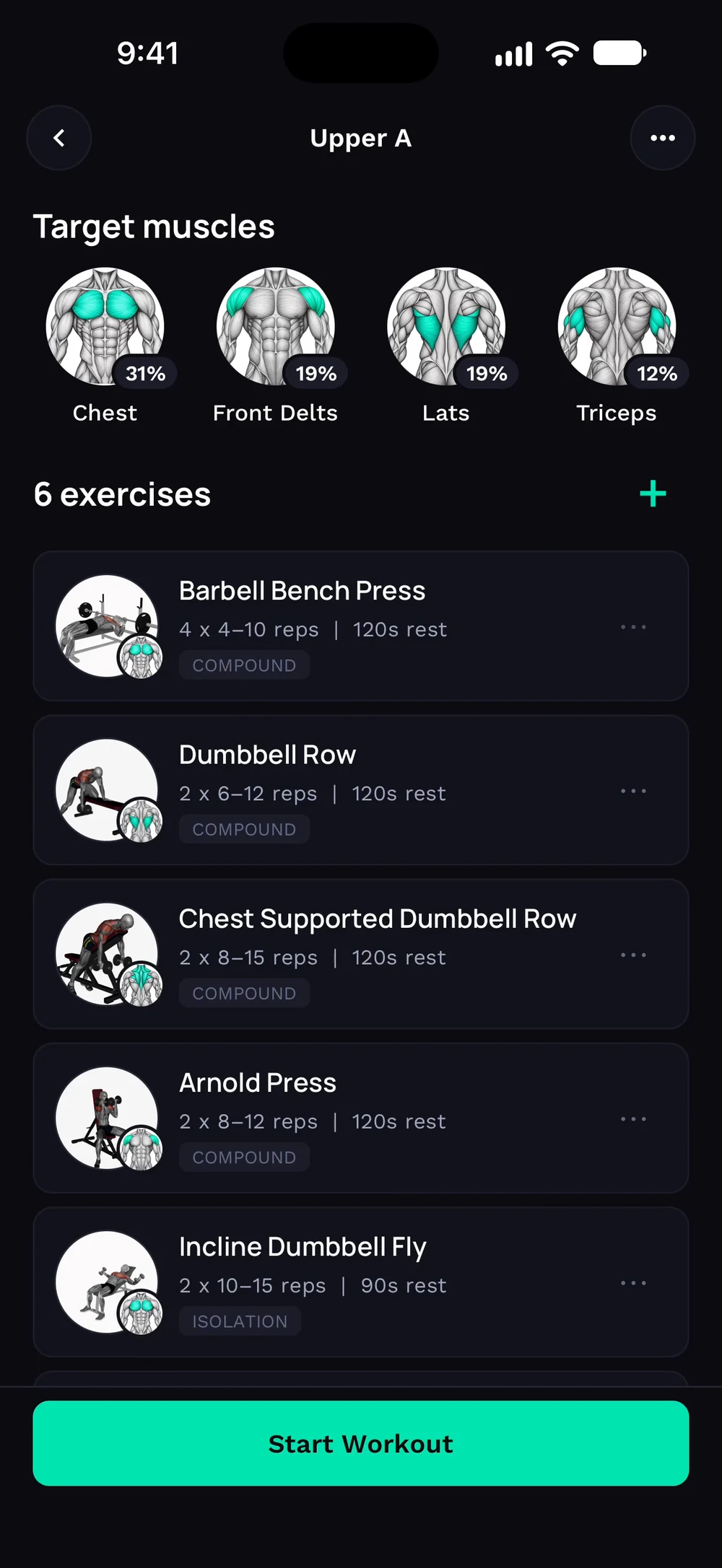

How do I change sets and reps?
Change sets, rep range, rest and technique for one exercise.
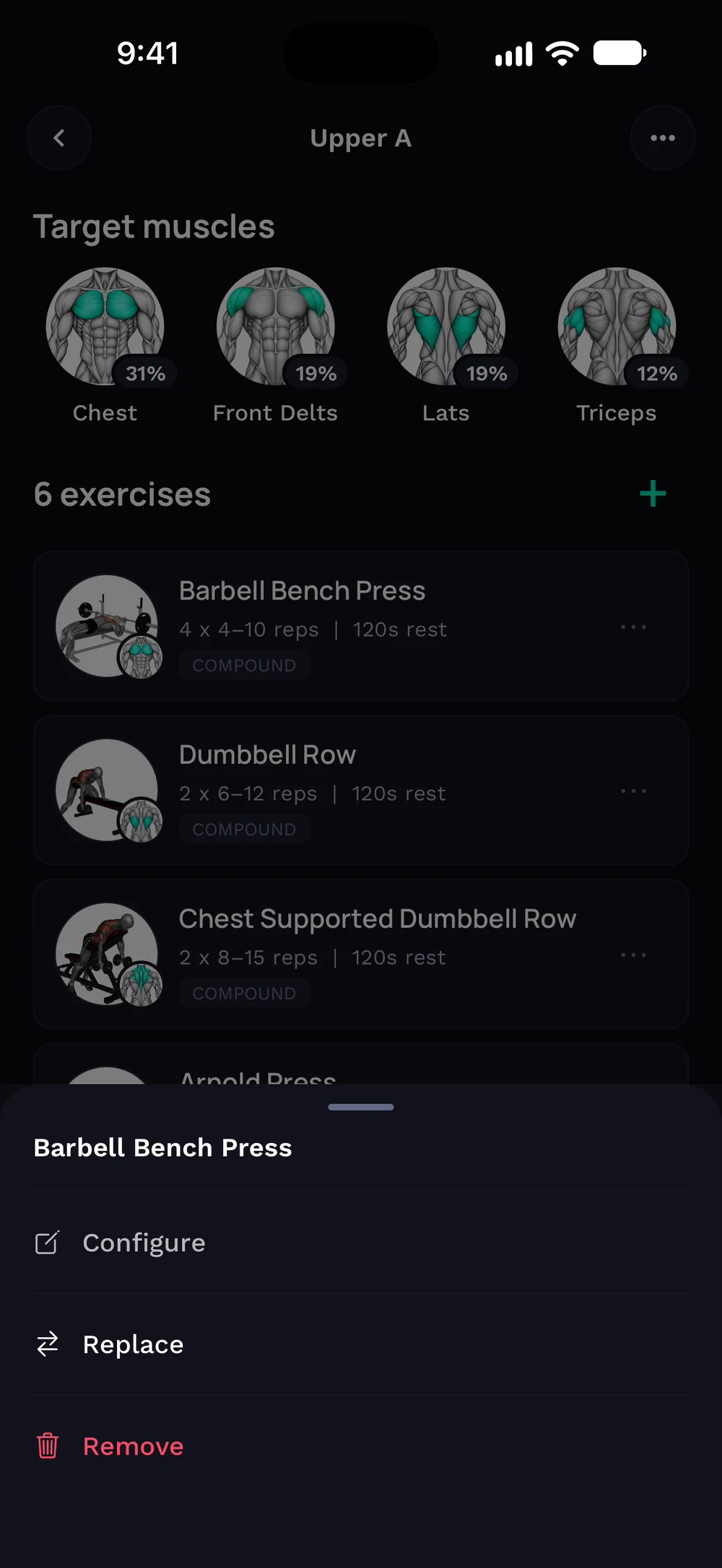
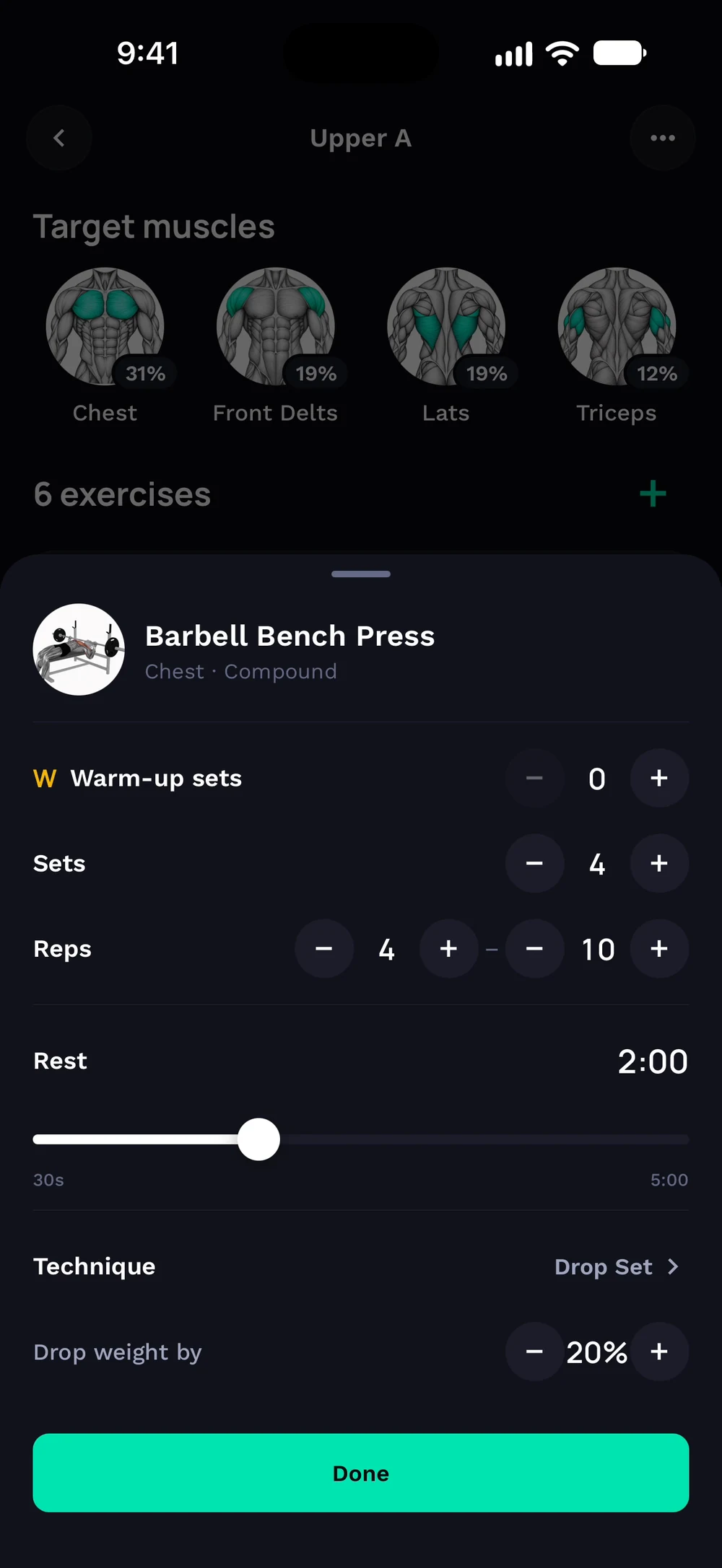
Open a day and find the exercise you want to adjust. Tap its three dots and choose Configure.
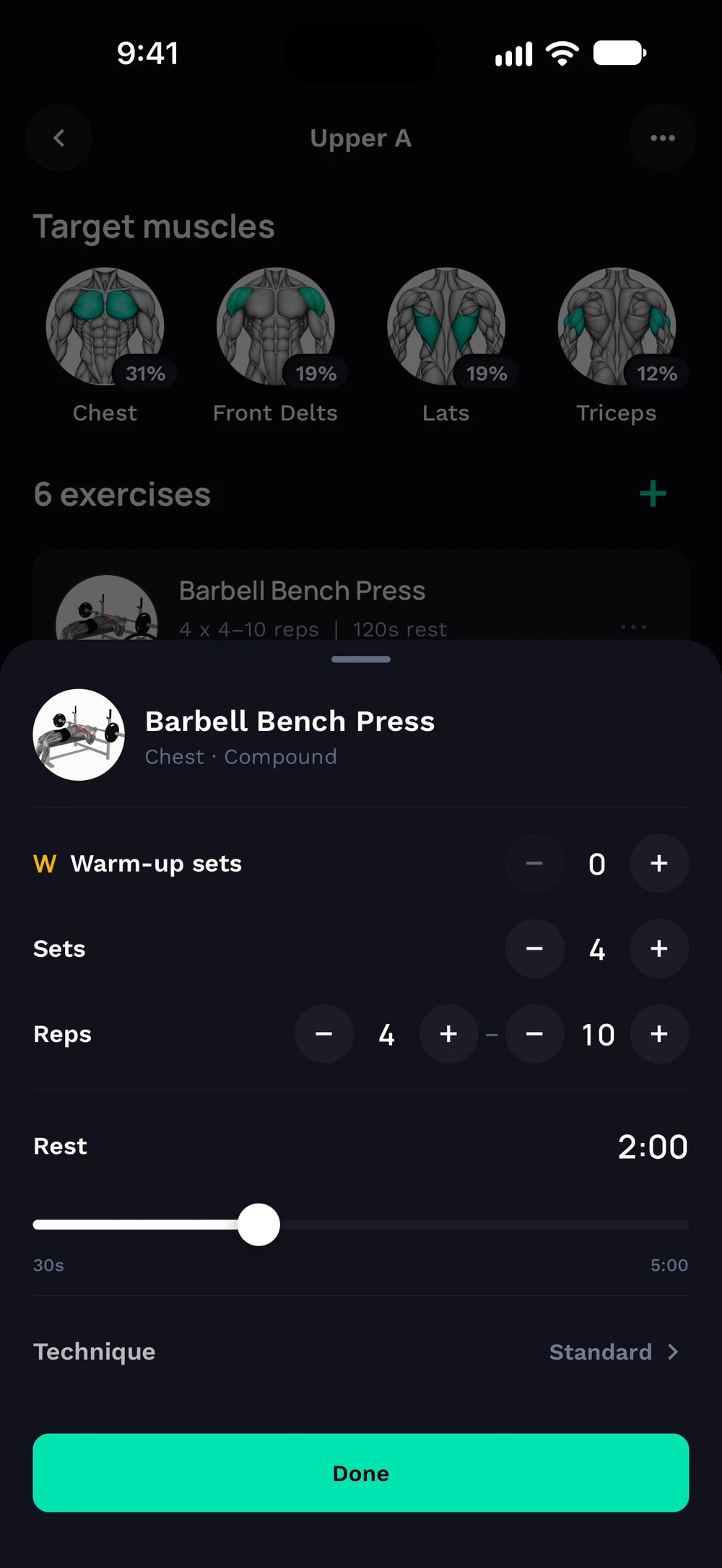
Set warm-up sets, sets, reps and rest. Tap Technique to change how it is performed. Pick a technique, for example Drop Set.
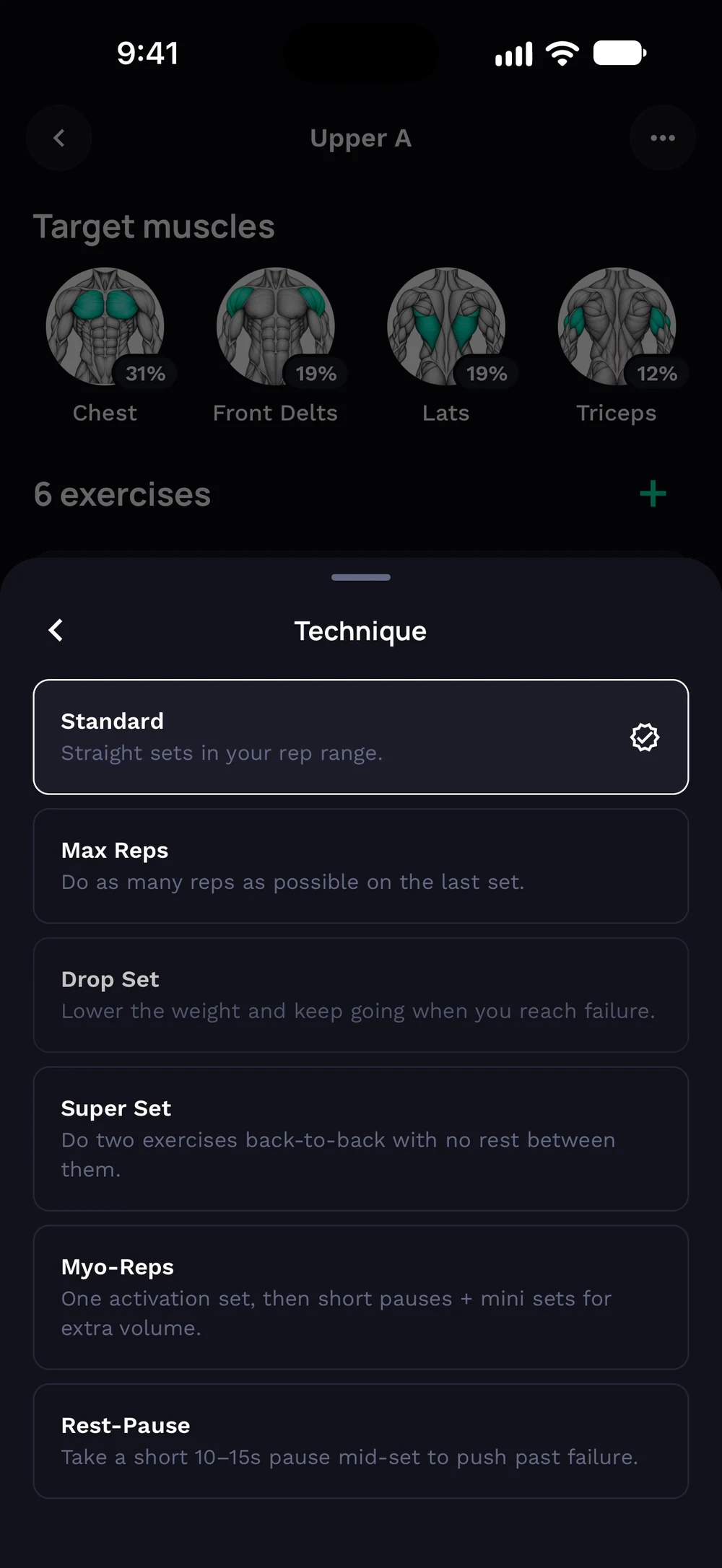
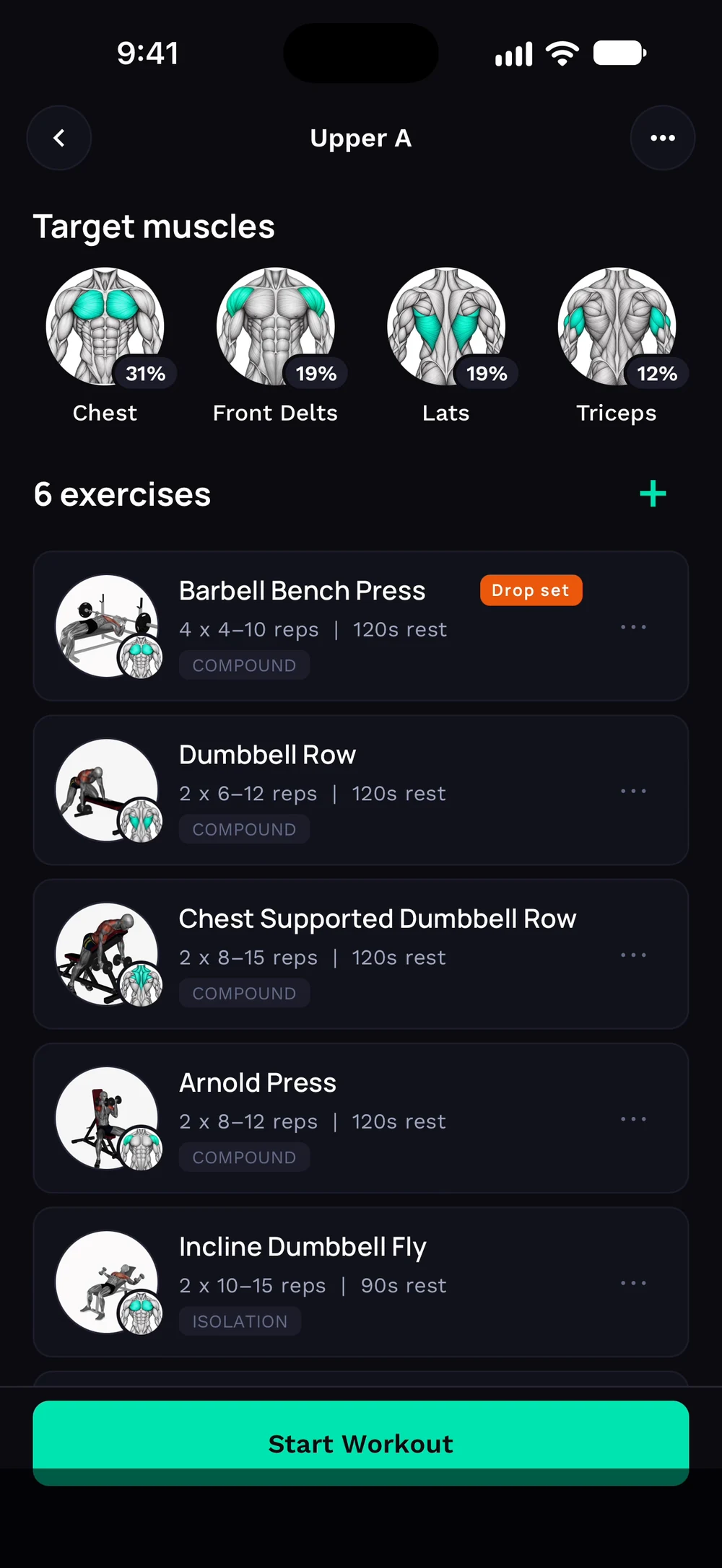
Set the details for it, like how much the weight drops. Tap Done. A badge on the exercise shows the technique.
Frequently asked questions
How do I change sets and reps?
Change sets, rep range, rest and technique for one exercise. Here is how: Open the exercise's three dots and choose Configure. Set the number of sets and the rep range. Pick a technique if you want one. Save.
Is configure sets, reps and technique free in Bite?
Yes. Configure sets, reps and technique is part of the free Bite app.
Where do I find configure sets, reps and technique in the app?
Go to Program > exercise > Configure.