
Rest timer
The rest timer starts after every set and counts down at the top of your workout. Add or remove 30 seconds with one tap.
Find it: Workout > set done > timer

 Coming soon
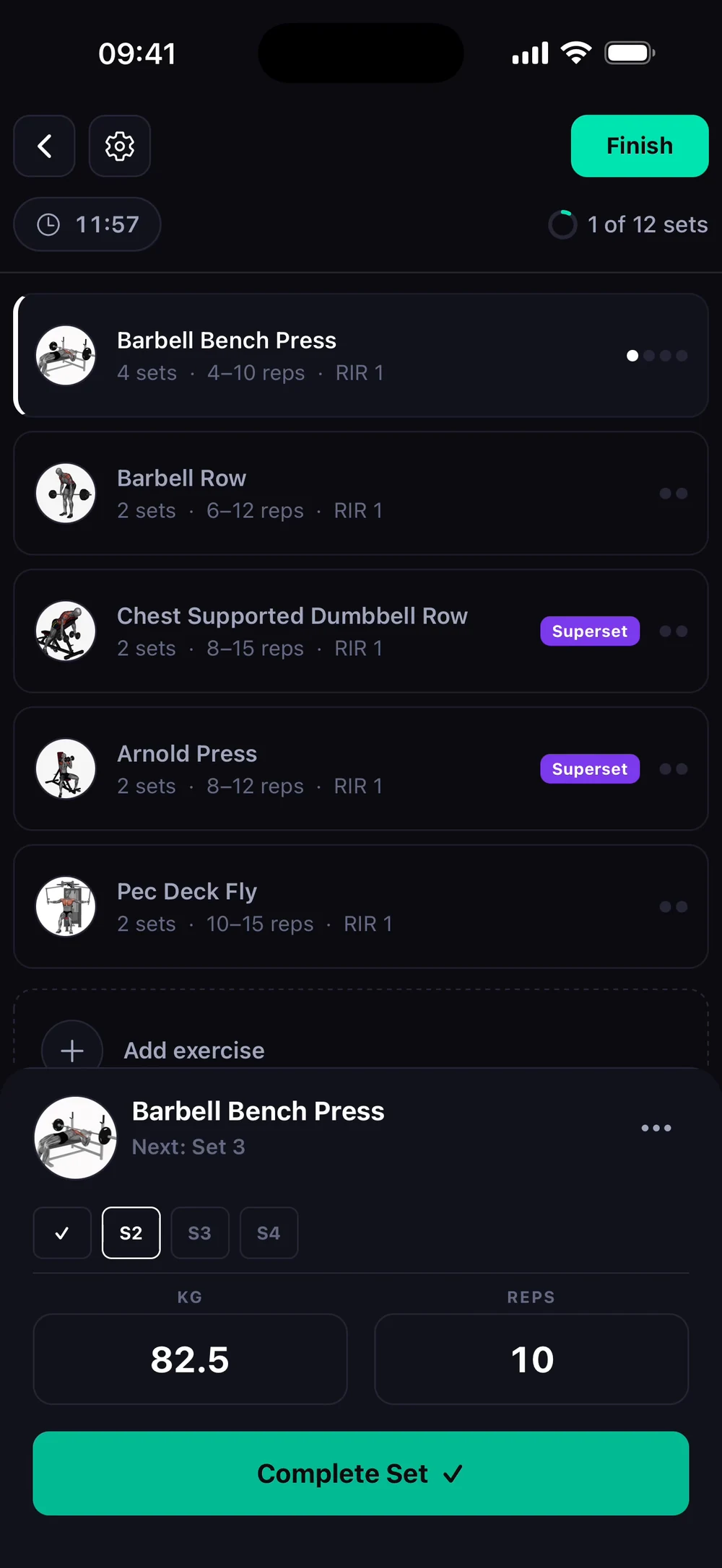
How does the rest timer work?
The rest timer starts after every set and counts down at the top of your workout. Add or remove 30 seconds with one tap.
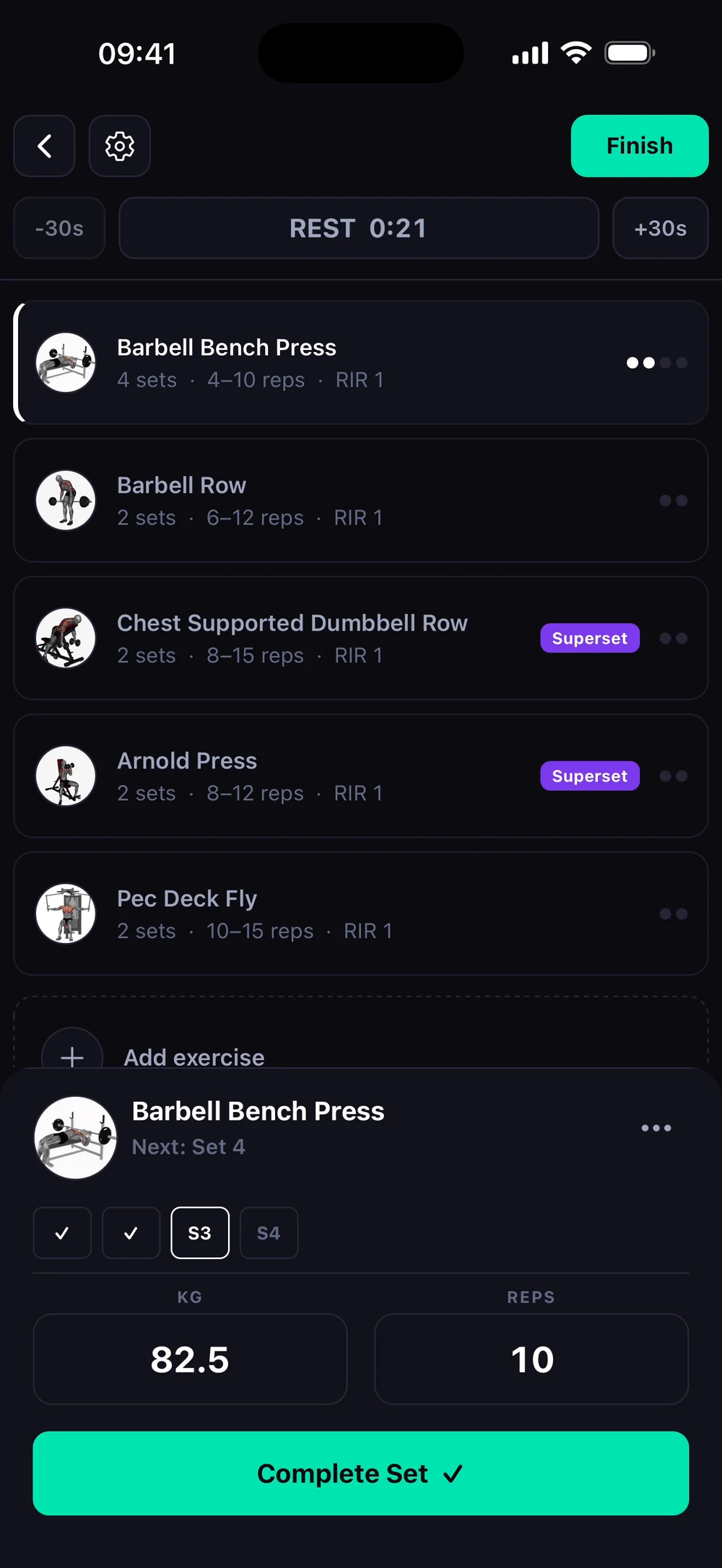
Tap Complete Set and rate the set. The rest timer starts straight away. The timer takes over the top of the workout and counts down, here from 1:30. Your next set stays ready below.
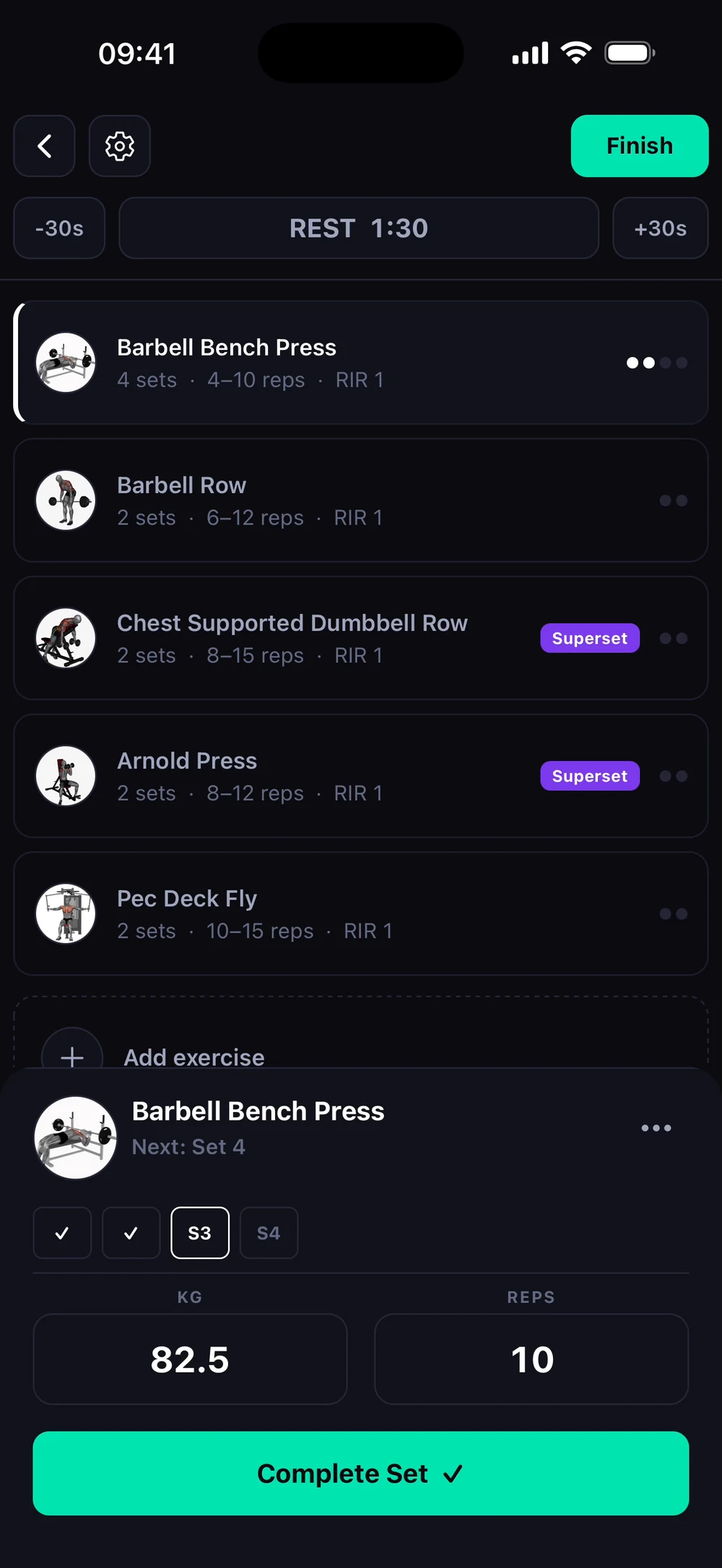
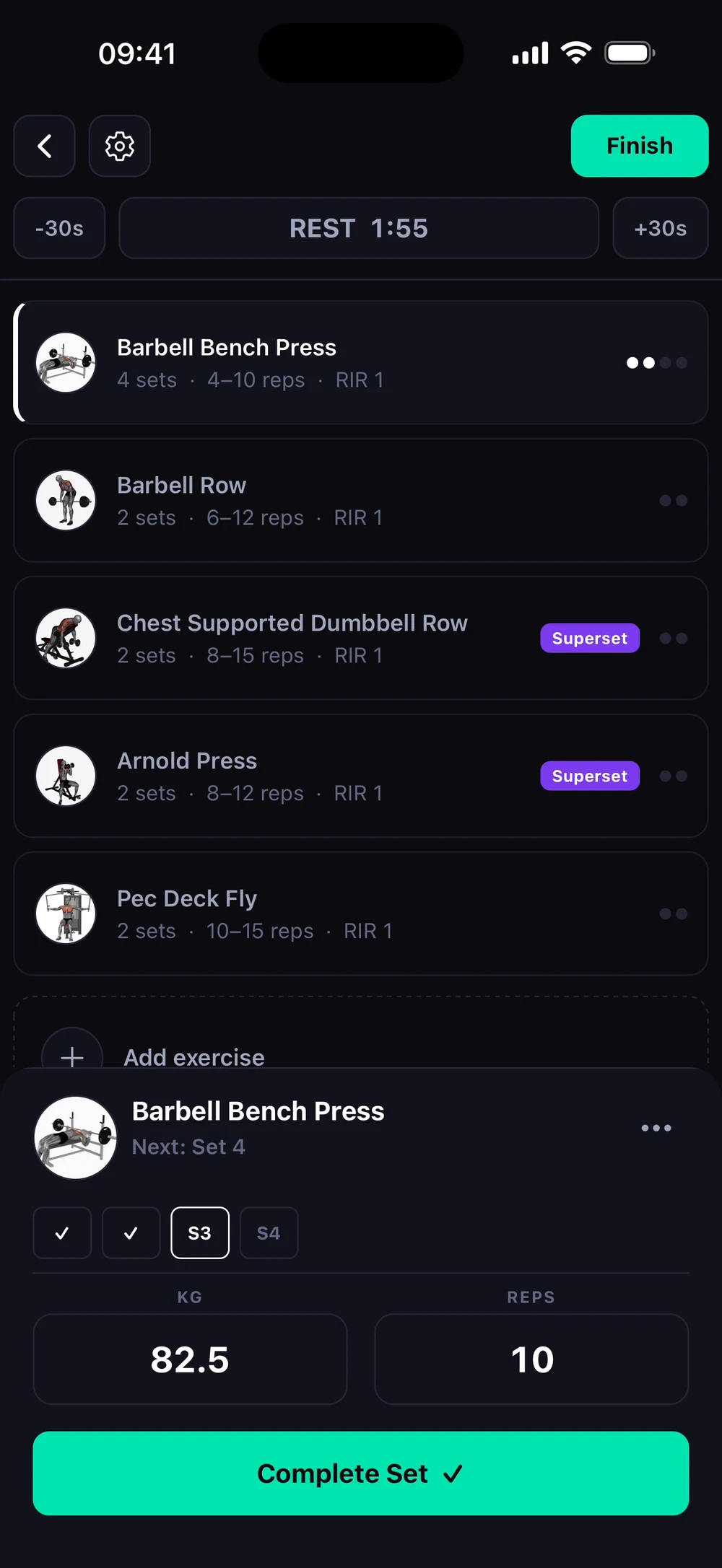
Tap +30s to add more rest. The timer jumps from 1:25 to 1:55. Tap -30s to cut the rest short, here down to 0:21. Start your next set whenever you are ready.
Frequently asked questions
How does the rest timer work?
The rest timer starts after every set and counts down at the top of your workout. Add or remove 30 seconds with one tap. Here is how: Tap Complete Set and rate the set. The rest timer starts straight away. The timer takes over the top of the workout and counts down, here from 1:30. Your next set stays ready below. Tap +30s to add more rest. The timer jumps from 1:25 to 1:55. Tap -30s to cut the rest short, here down to 0:21. Start your next set whenever you are ready.
Is rest timer free in Bite?
Yes. Rest timer is part of the free Bite app.
Where do I find rest timer in the app?
Go to Workout > set done > timer.